How to write a review on DynoBHP
Owner reviews help the next buyer more than any brochure can. If you live with a car every day, your take on it is worth sharing.
This guide walks you through posting one, from opening the reviews section to getting it published. It takes a couple of minutes, and you do not need a full account to do it.
Updated October 20263 min read
To keep reviews genuine, each one is tied to a verified email and checked by our team before it goes live. Here is the whole flow, step by step.
Post your review
- 1
Open the reviews section
Open the car's page and select the User Reviews tab. You will see the owner ratings on the left, and a box to add your own on the right.
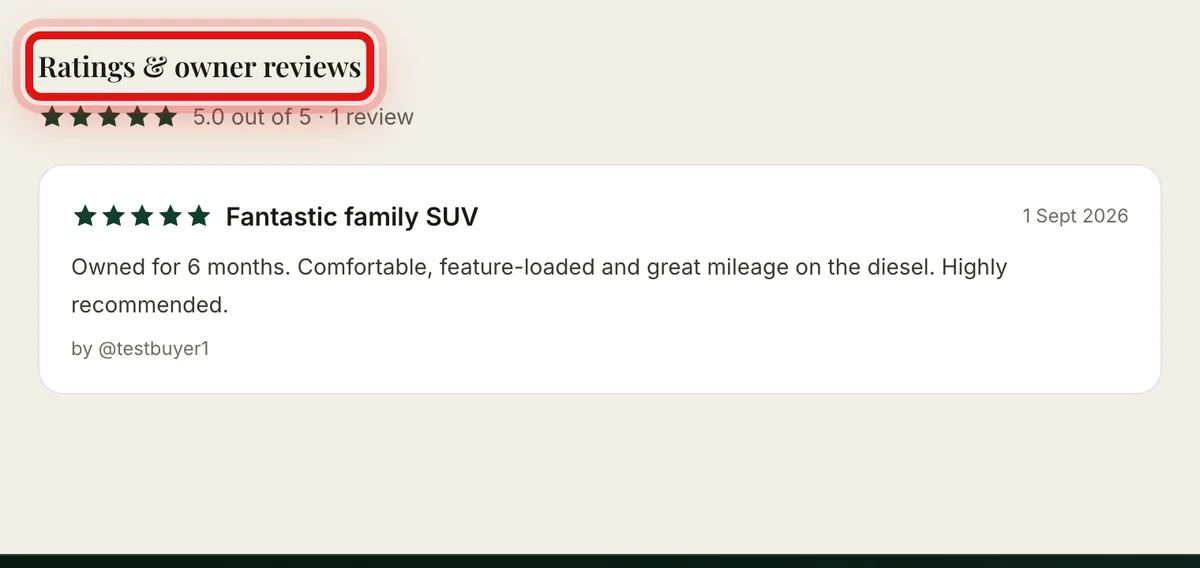
The User Reviews tab shows every owner rating, with a space to add yours. - 2
Verify your email
In the Own this car? box, type your email and select Send code. There is no password to set and no account to create. This step just confirms a real person is behind the review.
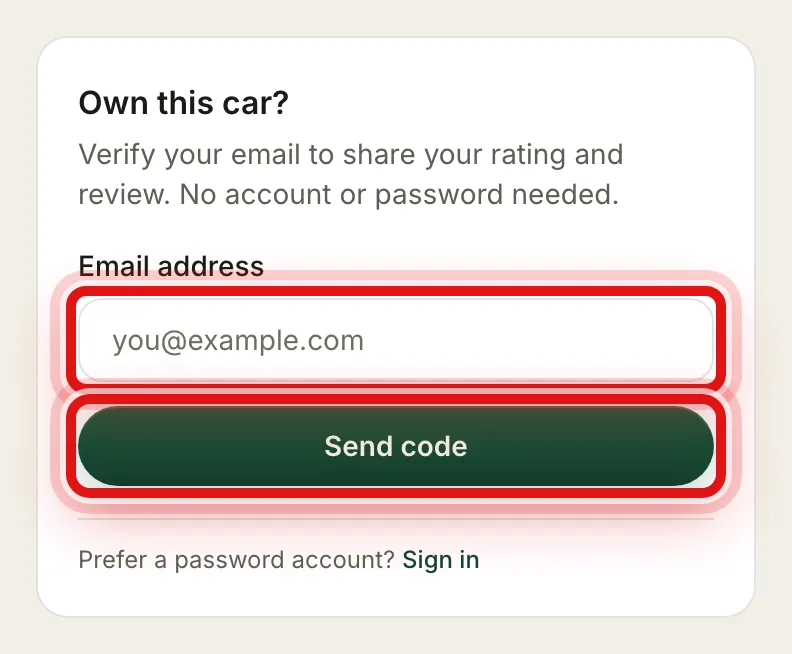
Enter your email and select Send code. No password is needed. - 3
Enter the code
Check your inbox for the 6-digit code and type it in. You can add a display name for how your review is signed, then select Verify and continue. The code lasts 10 minutes.
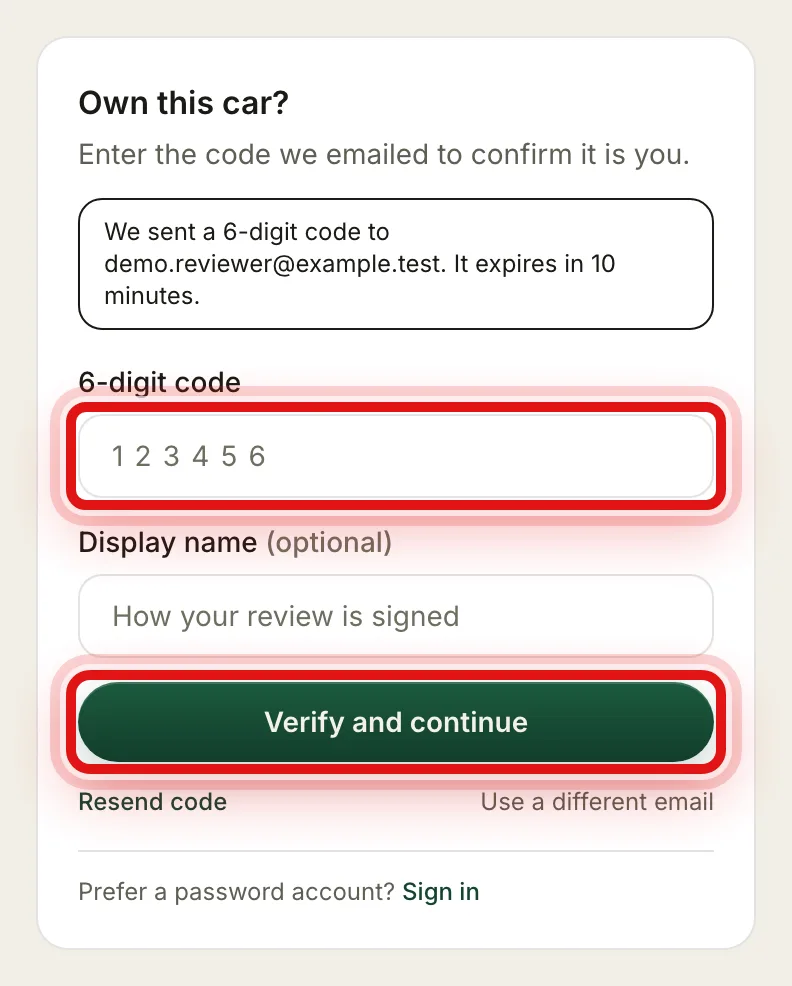
Type the code from your email, add a name if you like, then verify. - 4
Give your star rating
Pick an overall score from one to five stars under Your overall rating. Above it, you can also rate the car on mileage, maintenance cost and safety if you want to.

Set your overall star rating. The other ratings are optional. - 5
Write your review
Add a title of at least 10 characters and a review of at least 300. Write from your own time with the car, the good and the bad. Reviews written by AI or copied from other sites are not accepted.
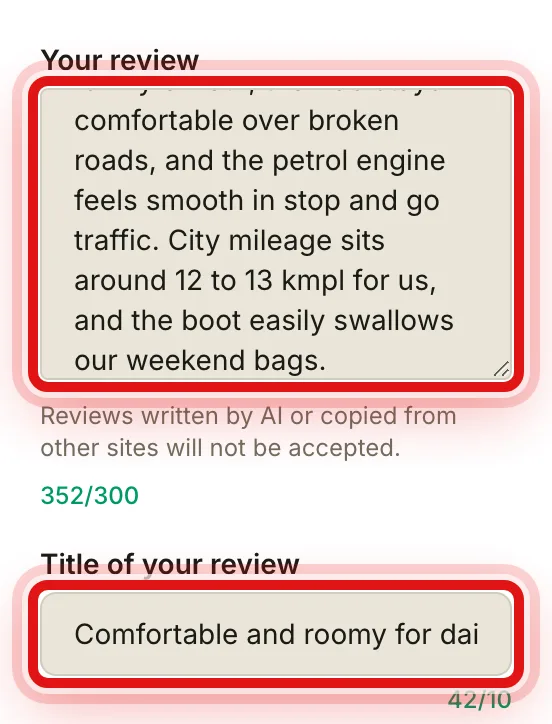
Write a title and a review from your own experience. The counters show the minimum length. - 6
Submit it
Select Submit review. You will see a thank-you message, and your review goes to our team for a quick check before it appears on the car's page.
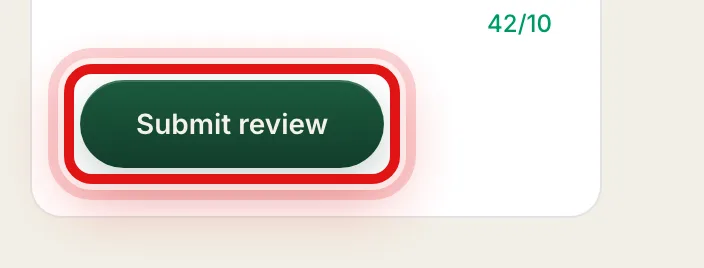
Select Submit review to send it in for a quick check.
What makes a review helpful
Write from real use. Say how long you have owned or driven the car, and how you use it, in the city, on highways or both.
Be specific. Real numbers help, like your mileage, the ride comfort, the service experience and anything that surprised you.
Give both sides. Mention what you love and what annoys you. A balanced review is far more useful than only praise.
Keep it your own. Write in your own words. Copied or AI written reviews are turned down, so they will not be published.
Prefer to use a password account? You can sign in from the same box instead of verifying by email. If you are still deciding between cars, it helps to read other owner reviews first and put your shortlist side by side.
Common questions
- Do I need an account to write a review?
- No. You can verify your email with a one time code. If you already have a DynoBHP account, you can sign in instead.
- Why do you ask for my email?
- It confirms a real owner is behind each review and keeps out spam. No password is created and your email is not shown on the review.
- Is there a minimum length?
- Yes. A title needs at least 10 characters and the review at least 300, so it is detailed enough to help other buyers.
- When will my review appear?
- After a quick check by our team. We read each one to keep reviews genuine and on topic before they go live.
Was this guide helpful?
See also
Still stuck? Reach a real person on our contact page.